Creating a Password Reset Disk and Recovering the Lost Password
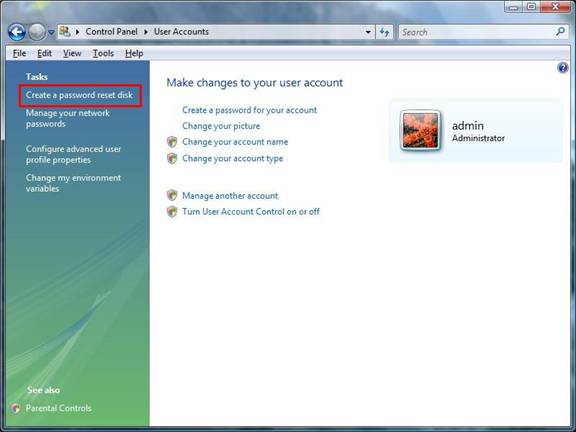
- To create the Password Reset Disk, goto Control Panel > User Accounts.
- Select “Create a password reset disk” option to the left as shown below:
-
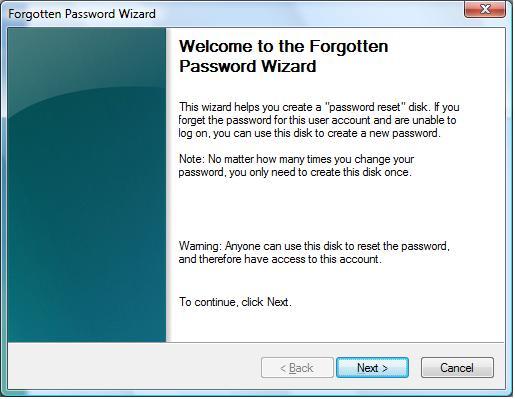
A Forgotten Password Wizard will start. Click on Next:
-
From the drop down, select the drive onto which you want to save the password in encrypted form. This wizard creates an encrypted file with .psw extension. Click on Next.

-
The wizard prompts you to enter the password for that user account. Enter the same password that you have set for the account.

-
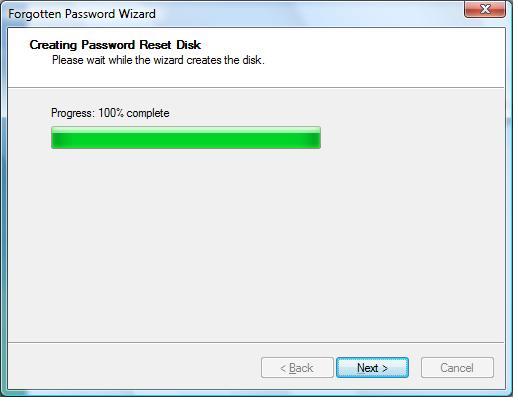
Click on Next to create the disk. Wait till it completes to 100% and then click on Next:
-
Click on Finish to complete the Forgotten password Wizard.
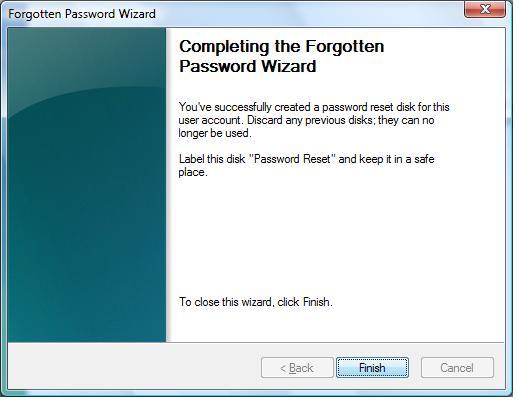
- Now, the password reset disk is ready to use, whenever you forgot the login password for that account. To Recover Forgotten Password:
-
If you have forgotten the login password for a user account, insert the password reset disk, click on Reset Password link, just below the user name, in the welcome screen.
-
You will be prompted to select the drive in which the reset disk is inserted. Select the appropriate drive letter. Click on Next
-
You will be prompted to enter a new password. The old password will be reset with this new password. Once you click on Next, it will overwrite the old password for the user account in the PC as well as on the password reset disk. So, you need not re-create a new password reset disk!
Note: You cannot view the old password. All you have access to is to create a new password. - Once the new password is reset, you can now try logging in using the new password, without any issues
Important points to remember while creating reset disk:
-
Old password cannot be retrieved. All you have is to reset it to a different password, so that you can log into the account with the new password.
-
You cannot have more than 1 password reset file per disk. Hence, if you have multiple user accounts in a PC, you need to have separate reset disks for each user account.
-
You can create reset disk onto Floppy, CD/DVD, Memory cards, USB flash drives.
-
While creating a password reset disk, the disk/flash drive/memory card need not be empty.
Finally, do you guess the size the Password reset disk?!
Yes. It is very small. It is the file of 1.5KB!! .
TKB:1056